Showing posts with label specularity. Show all posts

Friday, November 1, 2013

Materials - A Mini Lesson

First let me say, this truly is a mini lesson. Maybe lesson isn't the right word either. It was a heads up note card that I wrote and sent out as a notice to the Builders Brewery group in SL. Why would I do such a thing? Well partly because I really like materials and have spent quite a bit of time trying to figure them out over the last few months, but mostly because I also spend quite a lot of time in the BB group answering questions. In fact the original inspiration for this blog was to use it as a repository for oft answered questions about content creation in SL, and more detailed explanations than are possible in chat and classes.

So when Firestorm puts out a new beta viewer with materials and GASP a funny looking texture tab on the edit window, I just know there are going to be lots of questions. Questions in group, questions waiting as IMs, and note cards that begin with "maybe you'll know"....

Well maybe is right, I feel I should warn you that I don't know much about materials (yet), but since that has never stopped me before, here's my attempt to anticipate the first couple rounds of questions about the arrival of materials in your SL viewer.

Likely the first thing people will notice is that the texture tab looks different.
Don't panic, the same functionality is there, plus a few new capabilities.

There is now a tab called Materials, and the Texture tab can be used to apply 3 different kinds of texture information. The first one we are all already familiar with, though the name "diffuse" might sound a bit foreign, it's the basic final surface texture we have all been calling just texture.


The texture tab works the same as it always did. If you are just applying a regular texture, use this tab which will be on by default, then apply the texture the same way you usually do. Yes, local textures also work the same way.


Under the Texture (diffuse) tab you can now add 2 other kinds of texture information. The first is (in SL) called Bumpiness (normal). It can be used for a normal map if you have one. Normal Maps are commonly used to add more realism by making a surface appear raised or 'bumpy', or by preserving small sculpted details from higher resolution models. If you click the link, you will see there is a whole lot more to normal maps than Bumpiness


The other choice on the drop down tab is called Shininess (specular) and it is designed to read specularity maps, sometimes just called spec maps. A Specularity Map determines the shininess of a surface but also the quality of the shine. Polished wood surfaces have a softer edge to their highlights than hard plastic for instance. Metal is not only shiny and quite reflective, but the quality that we call metallic refers to the fact that metal often has different color(s) in its reflected highlights. 
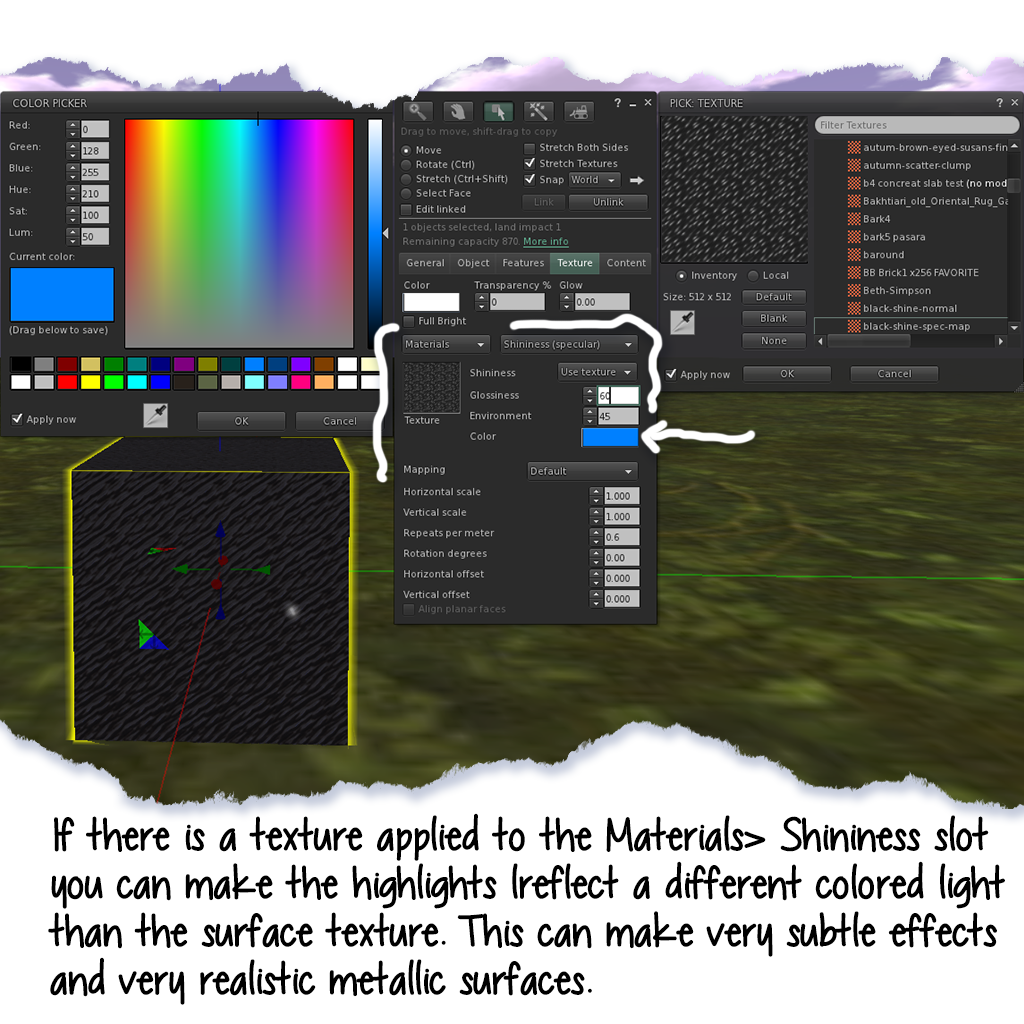

On the texture tab you can now assign as overall color to the reflected light or leave it white. You can also control how shiny the surface is (Glossiness), whether it reflects colors from the surrounding environment (Environment).
No, you can't make a mirror, but I did try. 


Materials can be really pretty in dimmer light conditions, and they look especially good as you move around or if lights are moving near them. 

I should apologise for having used a black texture for this demonstration lol. It was an accident born of the moment, an IM about fabrics and Photoshop pattern possibilities, and a freehand with gyazo.

If you would like to pick up the box with the sample textures inside, (since I hardly need say that the still photos above do NOT do materials justice), please visit the Builders Brewery Main building in SL, where these are available as a freebie. I will be adding to the selection regularly as I continue with my mad materials experiments.

Wish you knew more about materials? Me too! There's the knowledge base, and watch the Builder's Brewery Calendar for upcoming classes on both using and also making normal and spec maps.  


Now for those anticipated first few questions:


Q. Can everyone see materials?

A. No, most likely not. Right now you need to have a viewer that can read them (Exodus, Kokua, UKandDo, LL viewer , the new FS Beta, some versions of Cool VL).

Besides having a viewer that sees them, materials also require Advanced Lighting Mode in Preferences> Graphics.

By the way, it is NOT TRUE that you need to use Ultra or even a High graphics setting to enable Advanced Lighting Mode. It can be turned on, and works just fine on lower graphics settings. 

But materials do seem to require the settings shown below: Hardware skinning, Basic shaders, Atmospheric shaders, Advanced Lighting Model. If you are not sure whether your computer can handle these see my previous post


In particular, you might want to find out how your graphics card stacks up for life in SL. Not so long ago Oz Linden explained how the viewers decide what graphics settings each account starts out with based on a system to classify graphics cards. You can check how your card measures up on this table.

Not sure what graphics card you have? In SL go to the Help menu on the top bar of your viewer, and look inside About Second Life. That will give you a full account of your system and graphics card.


Q. Do I have to use materials now for texturing?

A. Of course not. You might never have any reason to use either a normal map or a specularity map.

Q. Do materials effect the Land Impact of objects?

A. Yup. Looks like every new feature from now on will be subject to a streaming cost calculation. That can mean materials will be bad news on tori and sculpties, but good news on plain box prims. In case you don't know what I mean, adding a material will have a similar effect to setting one prim to convex hull.

Q. What's the point of materials anyway?

A. Short answer is greater detail from fewer resources. 
Longer version is vertices - the points that determine surfaces in 3D space are complicated and expensive (resource -wise) to calculate, but texture information is relatively cheap. So 3D designers replace as much sculpted or modeled detail as they can with texture maps that the render engine (SL for us) will read. Meaning materials have the potential to give us more eye candy with less land impact and less lag than we would have without using them.

 To be continued....


Monday, September 30, 2013

Materials & Advanced Lighting Model - Are YOU Ready?

Daily almost I find myself in conversation with someone about whether materials will catch on. Coming from a creator (of usually mesh but not necessarily mesh) currently using materials as part of her work, the chat will normally wend its way around just how many people can see them anyway and what one should or shouldn't say in an ad for an object that includes materials. E.g. What exactly is "Materials Ready" supposed to mean?

Coming from a creator of mesh not currently using materials in her work the conversation will also revolve around just how many people can see them, but focused around a different sort of concern, which is whether the conversant needs to switch to a materials viewer yet or can afford to stall a little longer since apparently no one else can see them either.

I only ever guess that the number of people who can see materials is still very low, since on any given free sample giving day, I can rarely scare up more than a handful of people on a materials capable viewer (so far these are: the LL viewer, Kokua & Exodus). Add to that the fact that according to LL, the adoption of ALM (Advanced Lighting Model) is also still shockingly low, and the second kind of creator/conversant mentioned above (the one not yet using materials) has for now no real rush to switch viewers or get busy baking normal maps.  

I should maybe clear up a possible confusion. You need a materials capable viewer to apply the material textures to an object. To see the effect produced by materials on an object, you need the materials capable viewer as well as ALM turned on. And this means that even some of the people using a materials viewer still aren't seeing materials because they may not have turned on ALM. 

I just don't get that myself. From my view ALM even without materials in the offing is a whole lotta lovely to be had for no more than the flip of a switch. Add material textures into that mix and you get a whole lotta lovely, PLUS potentially a big reduction in LI and rendering resources. Seems to me like this shouldn't be that hard a sell.

But some people experience performance hits with ALM turned on, some people might be worried by the word "advanced" and some people have never actually used anything but the slider bar and graphics settings by category (Low, High, Ultra etc), so have no real idea what individual graphics settings are or do. Add to that the fact that not all viewers left ALM in the same category of graphics settings (everything from med/high to Ultra last I looked) and you have a recipe for peeps holding back based on fear or confusion or simply overlooking the issue altogether.


If you thought ALM was too advanced for your graphics cards, or worse a setting that requires Ultra Graphics, maybe it makes sense to approach this cautiously. No one wants a fried GPU right?

And how are we supposed to know what our graphics cards can handle?

Nalates' Things & Stuff to the rescue!

I was delighted to find that her latest blog post offers excellent lengthy reportage from the most recent TPV meeting at which who can see materials was discussed. Scroll down to the last subheading "ALM Stats" for the discussion as well as Oz Linden's tip on how to find out if your graphics card can handle ALM. 

Oz told Nalates where to look for the txt file in your viewer's installation folders to find a table that breaks what looks like all known graphics cards into classes. These classes are then used to determine what sort of graphics settings are suited to individual installations of Second Life based on system. In case that's not clear it means that when we download and fire up a fresh installation of Second Life, the viewer predetermines some graphics settings for us, based on among other things our graphics card classification as determined by LL. 

I was pretty pleased with this info, but I found the table almost impossible to read or decipher in Wordpad. Indeed, I could not even find my own graphics card in the blizzard of bits and pieces of data. So I copied everything out of there and into InDesign to recreate the data as a table that regular humans can read. (No reformatting, and no changes were required - making tables based on weird typesetter symbols and codes is just something InDesign happens to know how to do - go figure.) 

Graphics Cards by Class Table
Warning this small text file became a 22 page pdf so rather than copy it into this post, I have made it available here for preview or download.

So as Oz explains and Nalates relates, if your graphics card is a class 3 or above, you should have no trouble using ALM

My suggestion is turn it on just to see what you've been missing and you'll be, as they say, Materials Ready  :)